Signing-in With Passkey
After the passkey credential (FIDO2) is registered during the onboarding process (see: Onboarding with Passkey), it facilitates a user-friendly yet secure sign-in experience.
To further optimize the user experience, the project implements the passkey autofill function which is supported by most browsers. When a user clicks or taps on the username field in the login form, an autofill suggestion dialog appears. The dialog displays a list of stored passkeys associated with the website or app. The user selects their desired passkey.
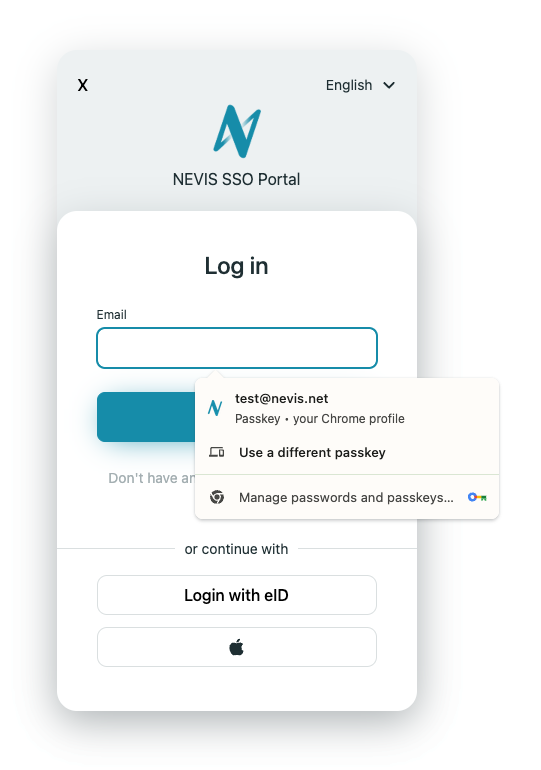
The device (for example, a browser) prompts the user to authenticate using biometrics (fingerprint, facial recognition), a PIN, or other secure method.
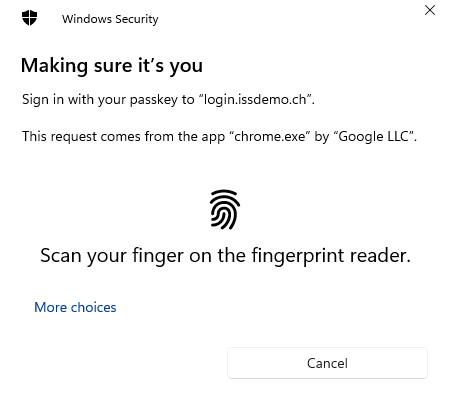
Upon successful authentication, the passkey is used to log in the user without requiring to enter a username or password.

FIDO2 mobile example apps
If you are building a native mobile application and want to see the FIDO2 passkey flow in action, Nevis provides open-source example apps for Android and iOS. The apps are designed to work with a Nevis Authentication Cloud backend, where FIDO2 passkey support is available out of the box. The same underlying FIDO2 concepts apply to a Nevis ID deployment, though the required server-side configuration is not provided out of the box and requires additional setup.
For more information, see FIDO2 Mobile Example Apps.