User details
The user details page collects everything the console knows about one end user: their profile data, the profiles and roles that grant them access, and the credentials they authenticate with.
Getting here
- Open User management → Users.
- Find the user in the list.
- Click ⋮ → Open user on their row.
Use the back arrow at the top left to return to the list. The list opens in its default state: your search term, status filter, and date range are cleared, and you start again on the first page. Only the page size you picked is kept.
This page is read-only. The only changes you can make are Block user and Unblock user, from the ⋮ menu at the top right. To edit a user's data, use the nevisIDM Administration interface under Advanced settings.
If you switch the environment in the header while viewing a user, the console returns you to the user list: the account you were looking at belongs to the environment you just left.
General information
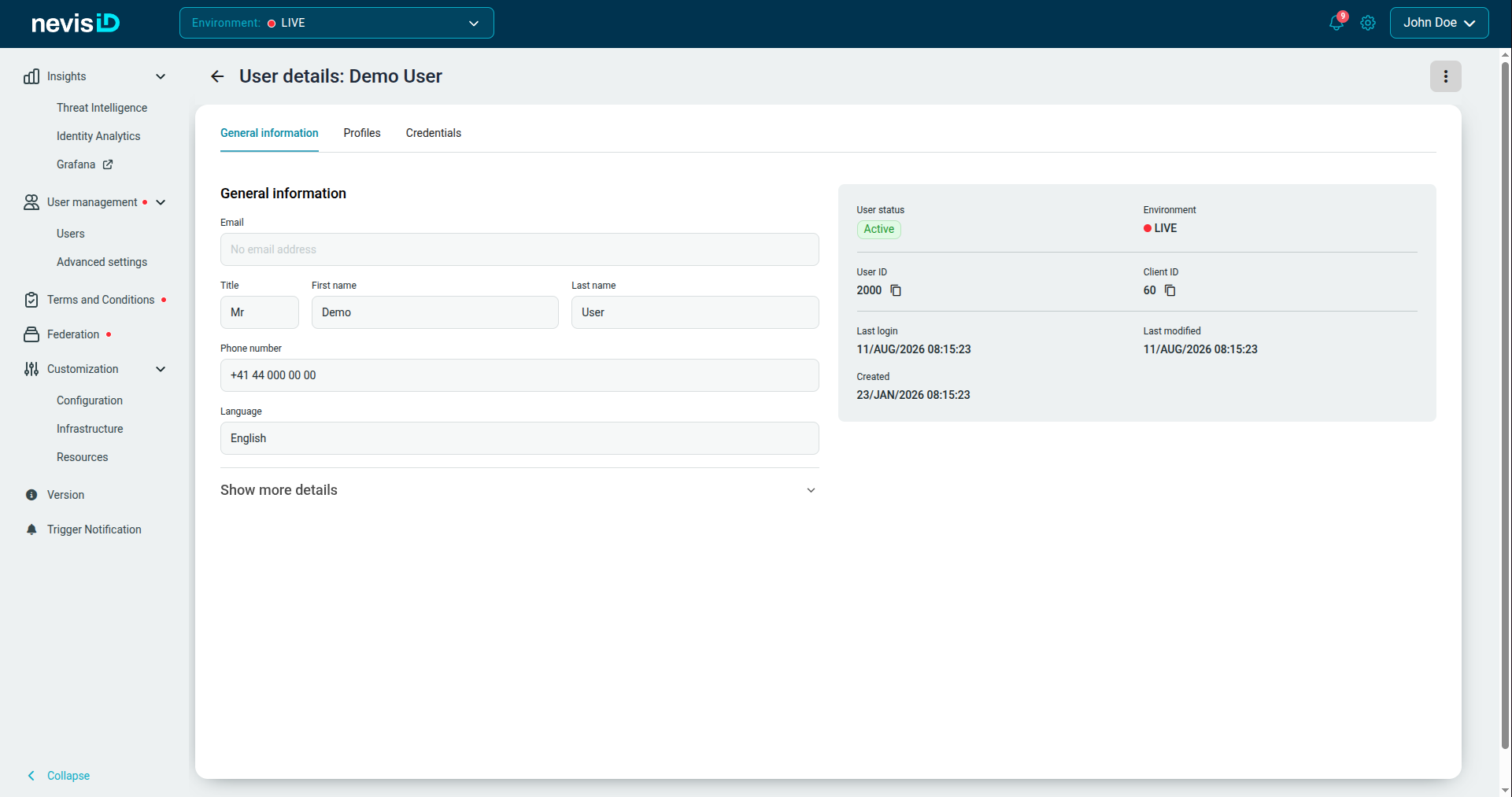
The tab opens on the user's core profile data, with an account summary in the panel on the right.
Profile fields
| Field | Notes |
|---|---|
| Optional in nevisIDM. If the user has one, a copy button appears next to it; otherwise the field reads No email address | |
| Title | Salutation, if recorded |
| First name / Last name | |
| Phone number | |
| Language | The user's preferred language, resolved from their language code |
Click Show more details to expand three further groups:
| Group | Fields |
|---|---|
| Contact | Mobile phone, Fax |
| Address | Address line 1, Address line 2, Postal code, City, Country (shown as the stored country code, not the country name) |
| Personal | Gender, Date of birth |
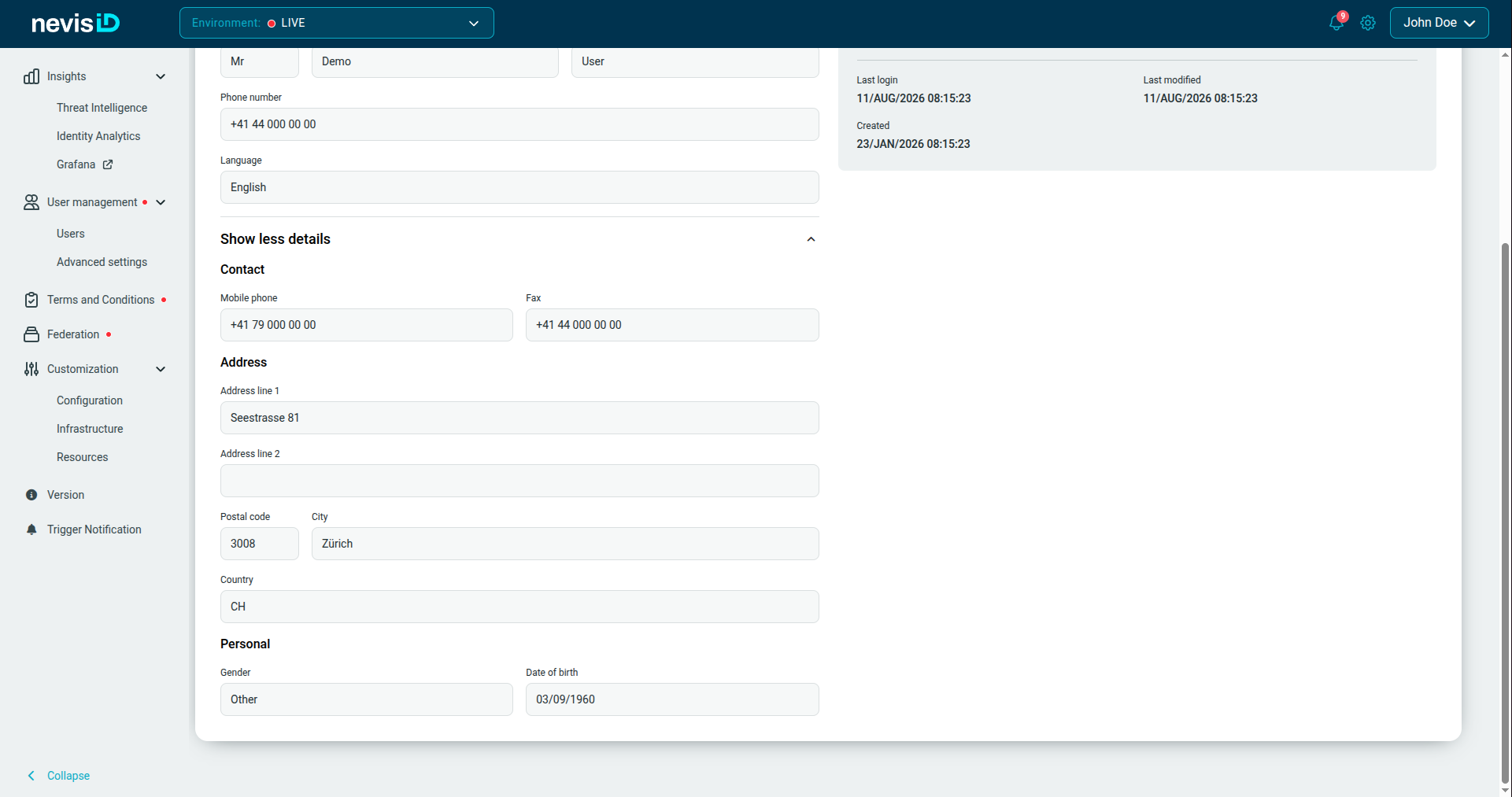
The link becomes Show less details while the groups are open. Click it to collapse them again.
Empty fields are shown blank — the user simply has no value stored for them. Date of birth is the exception: with no value stored it shows a grayed-out dd/MM/yyyy hint rather than an empty box.
Account summary
| Field | What it tells you |
|---|---|
| User status | Active or Blocked — the same status as in the user list |
| Environment | The environment this account belongs to |
| User ID | The user's external ID in nevisIDM. This is the reference to quote in support tickets and log searches — use the copy button |
| Client ID | The nevisIDM client (tenant) the user belongs to |
| Last login | Last successful login |
| Last modified | When the account data was last changed |
| Created | When the account was created |
Profiles
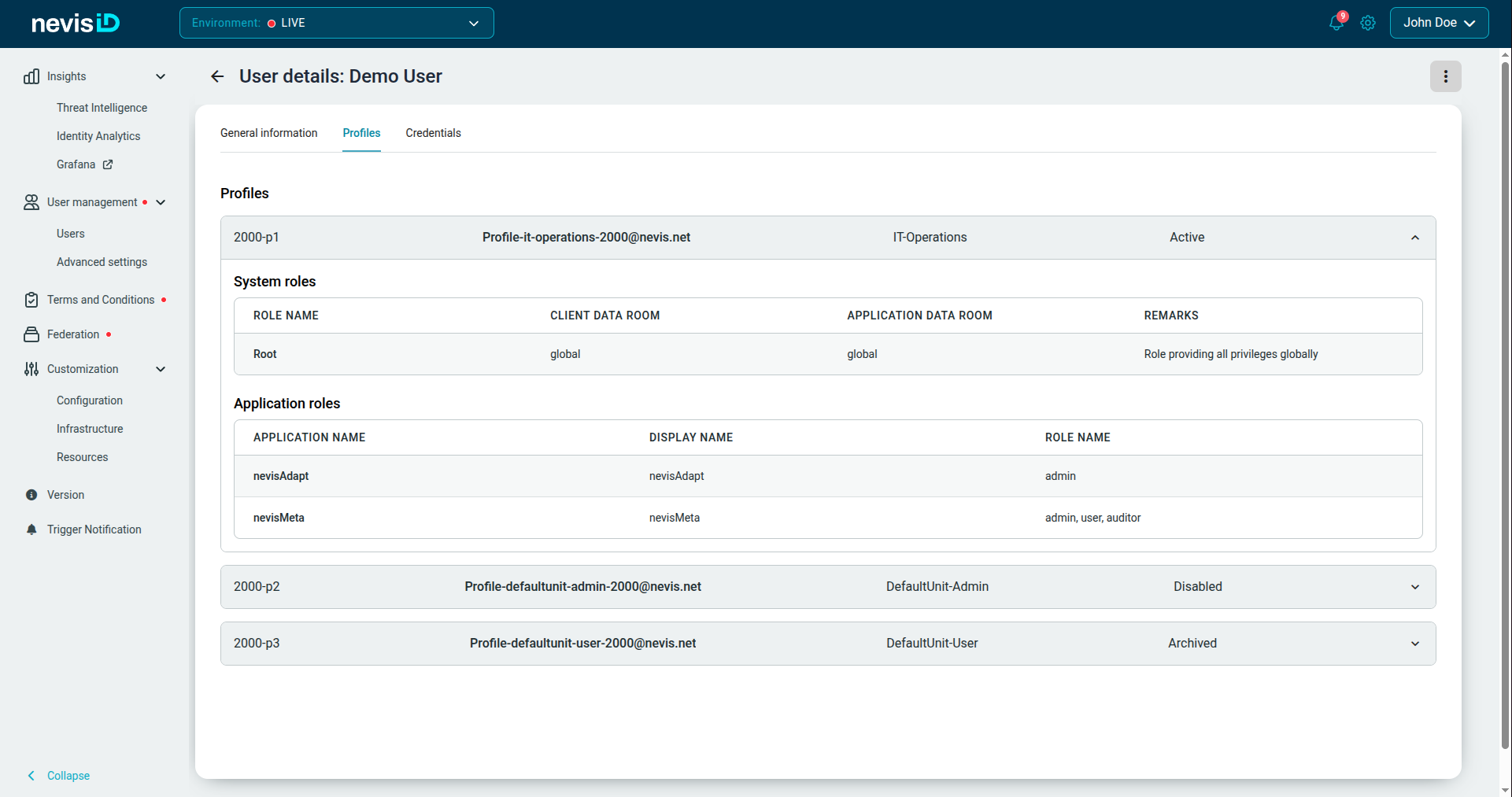
A profile is a user's membership in an organizational unit, and it is what carries their authorizations. A user can have several profiles — for example one per business unit — and each grants a different set of roles.
Each row in the accordion shows the profile ID, its name, the unit it belongs to, and its state. Click a row to expand it and load the roles granted through that profile:
System roles
Roles that grant permissions inside nevisIDM itself, scoped to a data room.
| Column | What it shows |
|---|---|
| Role name | The nevisIDM role |
| Client data room | The client scope in which the role applies |
| Application data room | The application scope in which the role applies |
| Remarks | Free-text notes stored with the assignment |
Application roles
Roles that grant access to your applications.
| Column | What it shows |
|---|---|
| Application name | The application the roles belong to |
| Display name | The application's display name |
| Role name | The roles the profile holds in that application |
If a profile grants no roles of a kind, the corresponding table reads No system roles or No application roles.
Credentials
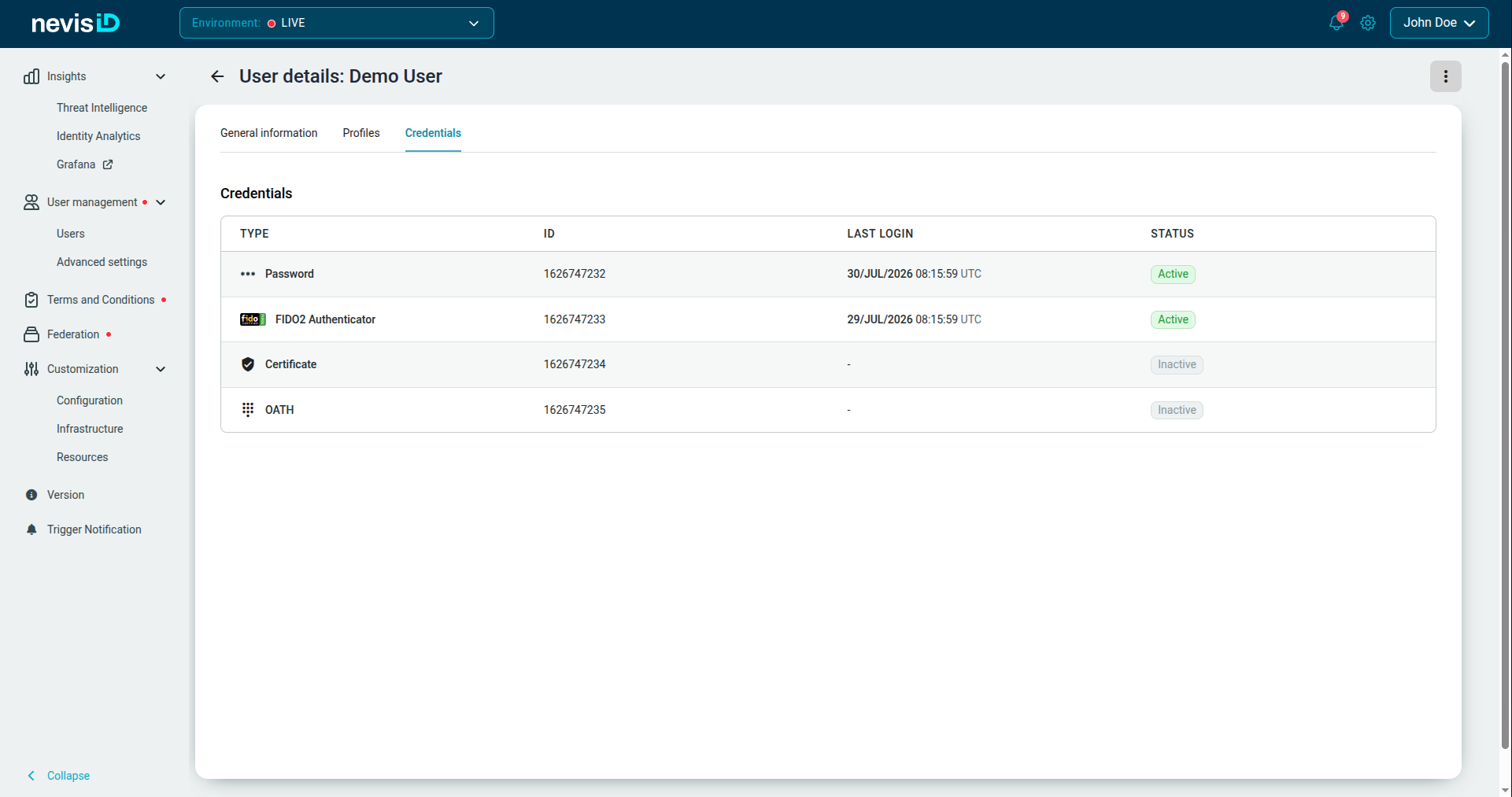
The Credentials tab lists the means the user can authenticate with — passwords, FIDO2 authenticators, certificates, and OATH tokens.
| Column | What it shows |
|---|---|
| Type | The credential type, with an icon for the common ones |
| ID | The credential's external ID in nevisIDM |
| Last login | The last successful login with this specific credential, in UTC. A dash means it has never been used |
| Status | Active if the credential can currently be used, Inactive otherwise |
A user with no credentials at all shows This user has no credentials.
Last login on this tab is shown in UTC, whereas the Last Login column in the user list follows your browser's locale and time zone. Expect the two to differ by your UTC offset.
Common workflows
Work out which method a user last authenticated with
- Open the user and go to Credentials.
- Compare the Last login values across the rows — the most recent one is the method they last used successfully.
- An Inactive credential cannot be used, even if it has a last login date from before it was deactivated.
Check why a user cannot reach an application
- Open the user and go to Profiles.
- Expand each profile and look at Application roles for the application in question.
- If no profile grants a role for it, the missing authorization is the cause. Assign the role in the nevisIDM Administration interface under Advanced settings.
- Also confirm the profile's state: a role granted through an inactive profile does not take effect.
Gather what support needs about an account
- Open the user and stay on General information.
- Copy the User ID and, if relevant, the Client ID.
- Note the Environment, User status, Last login, and Last modified values.